Manage Service Outage Messages
In the event that a specific service becomes unavailable or is scheduled for downtime, users of banking service applications can be informed in their preferred language through the Service Outage Message.
An Admin or a user with a similar role can schedule outage messages for banking service downtimes. The user can select a service and specify the time or duration of the outage message.
No more than two outage messages can be scheduled for the same duration. If a Service Outage Message is active and enabled for an associated service, online banking application users will see this message on their dashboard screens upon login.
Use the feature to manage service outage messages.
Menu path: Application Content Management > Service Outage Messages
The application displays the Service Outage Messages screen which lists the statuses of outage messages for a list of banking services. Each outage message is associated with a name and is shown in rows with the following details: Name, Application Name, Start Date and Time, End Date and Time, and Status.
You can sort the list based on Name, Start Date or End Date by using the sort icon. You can customize the list view by using the filter icon shown against the Application Name and Status columns.
You can do the following on the Service Outage Messages screen:
- Add a Service Outage Message
- Edit a Service Outage Message
- Copy a Service Outage Message
- Pause a Service Outage Message
- Terminate a Service Outage Message
- Delete a Service Outage Message
- Search for a Service Outage Message
Actions
The Action tab appears only when you select an outage message either in the Active, Pause or, Scheduled status. Using this tab you can carry out a bulk action such as delete, terminate or, pause outage messages. However, the bulk action is possible only when outage messages with a similar status are selected. The bulk action options vary with an outage message status.
The bulk action options for each outage message status as follow:
- Active: Pause, Terminate, Delete
- Pause: Resume, Terminate, Delete
- Scheduled: Delete
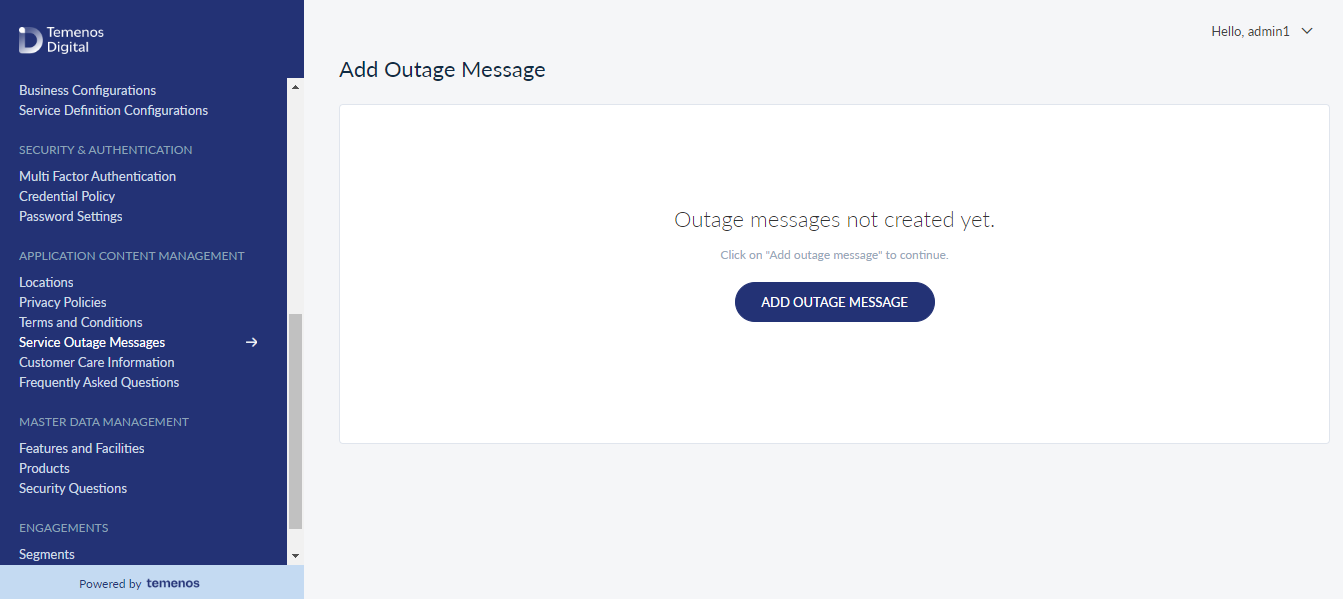
Add a Service Outage Message
Use the feature to add a new service outage message.
Menu path: Application Content Management > Service Outage Messages > Add Outage Message

In the Add screen, do the following:
- Name: Provide a name/title to the outage message.
- Applications: Select an application from the dropdown menu.
- Start Date & Time: Select a start date to schedule the outage message.
- End Date & Time: Select the end date to complete the scheduled outage message.
- Language & Message: Select the supported language from the dropdown and add the related message in the specific language. A previously selected language cannot be used again to add a new message. The message must be within 200 characters.
Click the 'Create' button. The newly created outage message will be displayed on the Service Outage Messages screen.
You can cancel the process at any time. The changes are not saved.
Edit a Service Outage Message
This feature will be used to edit a service outage message.
Menu path: Application Content Management > Service Outage Messages > Contextual Menu > Edit
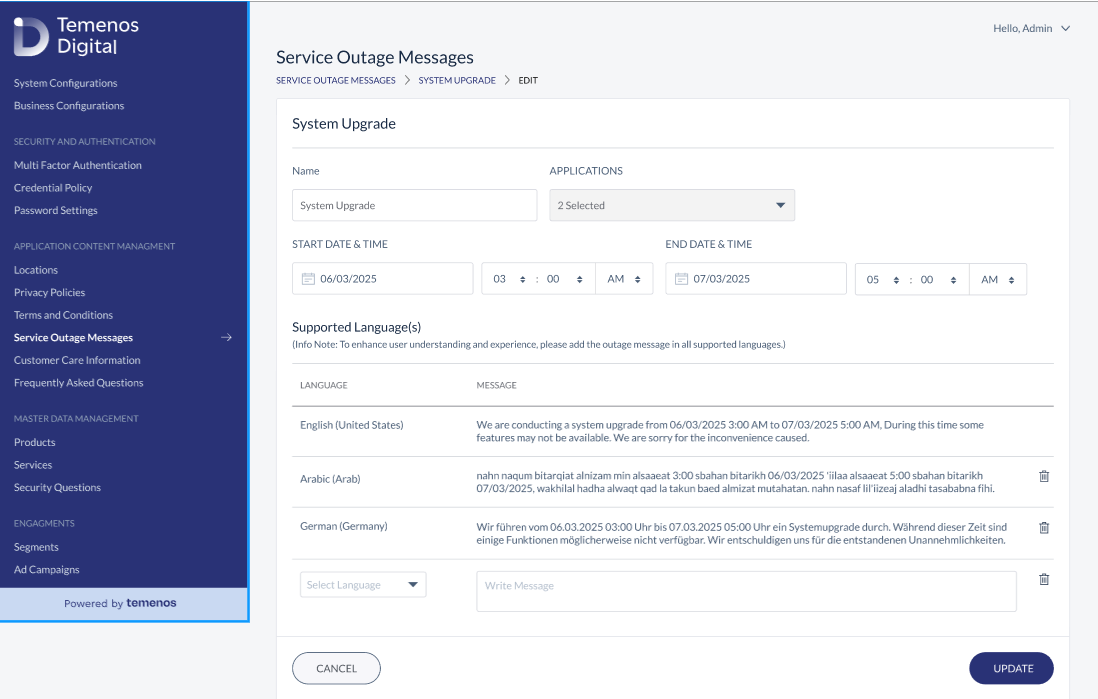
On the Edit screen, the user can do the following:
- Name: The user can Modify the name in this section.
- Applications: The user can select/deselect a banking service from the drop-down menu.
- Start Date & Time: The user can choose a different start date and time.
- End Date & Time: The user can choose a different end date and time.
- Language & Message: The user can edit, delete, and add the messages in their respective languages. A previously selected language cannot be used again to add a new message.
Click on the Update button to update the outage message. The application saves the updated outage message and displays it on the same row on the Service Outage Messages screen.
You can click Cancel at any time to abort the process. The changes are not saved.
Copy a Service Outage Message
Use the feature to copy a service outage message. You can copy any service outage service irrespective of its status.
Menu path: Application Content Management > Service Outage Messages > Contextual menu > Copy
Upon selecting the 'Copy' option, the user will be navigated to the 'Add Outage Message' screen, where all details of the outage message will be copied except for the Name.
To create a new service outage message, the user can modify any of the following fields on the screen:
- Applications: The user can modify a banking service from the drop-down menu.
- Start Date & Time: The user can choose a different start date and time.
- End Date & Time: The user can choose a different end date and time.
- Language & Message: The user can edit, delete, and add the messages in their respective languages.
A new name must be added.
In Fabric, a default language must be set. If a service outage message is not configured for a specific language in Spotlight, the system will automatically use the default language to display the message in the channel app. However, if no message is available in the default language in Spotlight, no outage message will be displayed on the screens in channel apps.
Pause a Service Outage Message
Use the feature to pause a service outage message. Only those outage messages with status as Active can be paused.
Menu path: Application Content Management > Service Outage Messages > Contextual menu > Pause
Terminate a Service Outage Message
Use the feature to terminate a service outage message. Only those outage messages with status as Active and enabled from the associated service are displayed on the banking services application.
Menu path: Application Content Management > Service Outage Messages > Contextual menu > Terminate
The options available to the users from the contextual menu vary based on the status of the service outage message. For example, a service outage message with Completed status will only have the Copy option whereas a service outage message with Active status will have multiple actions options such as Copy, Terminate, Pause, and Delete.
Delete a Service Outage Message
Use the feature to delete a service outage message.
Menu path: Application Content Management > Service Outage Messages > Contextual menu > Delete
Select the check box next to outage message you need to delete. The Spotlight application displays the Delete icon. Click the Delete icon.
The application deletes the outage message and removes it from the outage message list.
You can also select multiple, or even all, outage messages and delete them.
Search for a Service Outage Message
Use the feature to search for a service outage message.
Menu path: Application Content Management > Service Outage Messages > Search
Enter the required service name or a part of the outage message in Search. The application displays the search results with the list of service outage messages.
In this topic